Styling Empty Elements with the CSS :empty Pseudo-Class
The :empty pseudo-class matches elements with no children, including text nodes, letting you hide or style empty containers without JavaScript.
You need to style a component only when it has no content, and you are tired of writing JavaScript to check innerHTML or childElementCount before toggling a class. The CSS :empty selector does that job in one line. No script. No event listeners. No layout thrash. It targets any element with no child nodes at all, no elements, no text nodes, no whitespace, so you can hide an empty box, show a placeholder, or adjust spacing without touching the DOM. The selector ships in every modern engine and works everywhere you need it, which makes it the default tool for conditional empty-state styling.
Before you write the rule, know exactly what :empty counts. The selector targets an element when its DOM subtree contains zero child nodes. That means no element children, no text nodes, and no whitespace nodes. A single space, a line break, or a tab inside the tag creates a text node, and the selector fails. This is the most common pitfall. It trips up everyone who writes
, and are always empty because they cannot have children; :empty always matches them. Pseudo-elements like ::before and ::after do not create real DOM children, so a node with only generated content still matches :empty.
The specificity of :empty is a single pseudo-class, which scores (0,1,0). That is one class-level selector, no IDs, no elements. A rule like .card:empty has specificity (0,2,0), and a plain div:empty scores (0,1,0). This matters when you layer rules: a class selector without :empty will beat it on specificity, so write your empty-state rules with enough weight or rely on source order. The pseudo-class itself adds no extra weight beyond a class, which keeps it predictable in the cascade.
Collapse Async Containers Before Content Arrives
Here is the first practical sample. You have a comment section that loads asynchronously. While the data arrives, the wrapper is empty. Without CSS, that empty box still takes up space, pushing the footer down and contributing to Cumulative Layout Shift when the content finally renders. With :empty, you collapse it instantly.
.comments-container {
  min-height: 4rem;
}

.comments-container:empty {
  display: none;
  min-height: 0;
}
The declaration hides the wrapper entirely when it has no children, removing it from layout and eliminating any shift it would cause. When the comments load, the element gains child nodes, :empty stops matching, and the box reappears with its normal min-height. This pattern replaces the old JavaScript approach of checking childElementCount and toggling a class, which runs after the DOM changes and can cause a flash of unstyled content.
Styling Empty Elements with the CSS :empty Pseudo-Class
The CSS :empty selector is a pseudo-class that targets any element with no child nodes. It is not a selector for components that look empty or that have no visible content. It is strictly about the DOM subtree. If the tag contains a single whitespace character, a text node, or any element child, :empty does not match. This precision is what makes it useful for conditional styling based on actual content presence, not visual appearance.
Consider a card component that sometimes shows a title and sometimes shows nothing. The card has padding, a border, and a background. An empty card wastes space in a grid. Instead of adding a class in your template or checking textContent in JavaScript, write one rule: .card:empty { display: none; }. That single declaration removes the empty card from the layout, and the grid reflows without any script. If the card later receives content, the selector stops matching and the card returns.
Show a Placeholder Without Adding DOM Nodes
How do you style empty elements with CSS without JavaScript? Use :empty to target the node, then apply any style you need: hide it, shrink it, change its background, or show a placeholder via ::before. Here is a more complete sample that shows an empty-state message while keeping the box visible.
.status-panel {
  border: 1px solid #ccc;
  padding: 1rem;
}

.status-panel:empty::before {
  content: "No status updates yet.";
  color: #666;
  font-style: italic;
}
The generated content from the ::before pseudo-element appears only when the panel is truly empty, giving the user feedback without adding a DOM node. The pseudo-element does not affect the :empty match. The element still has no real children, so the selector continues to apply. This is the correct way to show placeholder text without polluting the markup.
Style Empty Div CSS: Matching the Container
When you need to style an empty div in CSS, :empty is the direct answer. The selector matches any div with no children, regardless of its class, ID, or position. This works for layout wrappers, flex items, grid cells, and any other node that might be empty after data loads or user interaction. The key is the whitespace rule: a div containing a newline or spaces is not empty, because the whitespace forms a text node.
Make the Empty State Visible During Development
Here is a sample that targets a specific class and gives the empty state a visual treatment without hiding it.
.empty-div {
  background: #f9f9f9;
  border-radius: 4px;
}

.empty-div:empty {
  background: #ffeeba;
  border: 2px dashed #cc9900;
}
This sample changes the background and border when the div is empty, making the empty state visible to the designer and the user. The same pattern applies to any element: ul, section, article, or span. The selector is not limited to divs. Use it wherever content presence matters.
The failure case is a tag that contains whitespace. If your template renders a div with a line break between opening and closing tags, the browser creates a text node, and :empty will not match. The fix is to remove the whitespace from the markup. Many developers hit this when they write HTML with indentation. Put the div on one line or use a comment to suppress the whitespace.
:empty Pseudo-Class Example: Real-World Patterns
A complete :empty pseudo-class example shows the selector in a realistic context. Think of a list that receives items from a server. Before the data arrives, the list is empty and takes up space. With :empty, you can show a loading indicator or collapse the list entirely.
<ul id="todo-list"></ul>
#todo-list {
  min-height: 2rem;
}

#todo-list:empty {
  min-height: 0;
}

#todo-list:empty::before {
  content: "Loading...";
  display: block;
  padding: 0.5rem;
}
The list starts empty, so :empty matches and the ::before pseudo-element shows “Loading…”. When the server returns items and JavaScript appends
Notification Badges and Filtered Tables
Another example involves a notification badge. A badge that shows a count is often a span. When the count is zero, hide the badge. Write .badge:empty { display: none; } and the badge disappears when no number is present. The catch: the template must not render a space between the span tags. Use with no whitespace, and the selector works.
The pattern also works for filtering UI. A search box that filters a table might leave the table empty after filtering. Instead of adding a “no results” row in JavaScript, select the table body with :empty and show a message via ::after.
tbody:empty::after {
  content: "No matching rows.";
  display: table-row;
  text-align: center;
  color: #888;
}
This sample keeps the table structure intact and provides feedback without adding a real row. The ::after pseudo-element is part of the table, so it participates in table layout. A clean, no-JavaScript solution for empty states in data tables.
Hide Empty Container CSS: Preventing Layout Shift
To hide an empty wrapper in CSS, the simplest rule is :empty { display: none; }. This removes the element from the document flow entirely. It no longer contributes to layout. That is the exact tool you need to prevent Cumulative Layout Shift when content loads asynchronously. The page reserves no space for the box, so when the content arrives, the wrapper appears and pushes the layout down. That shift happens once. The :empty rule ensures no shift occurs before the content exists.
Engine support for :empty is comprehensive. Gecko shipped it in version 1.0, WebKit followed, and Blink shipped it in version 1.0. Every major engine has supported it since, and it is marked as Baseline widely available. You can check current support details on caniuse. There is no need for a feature guard or a fallback in modern browsers. If you support older engines from before the Baseline date, use a JavaScript fallback that checks parentNode.children.length or textContent.trim().length, but that is increasingly unnecessary.
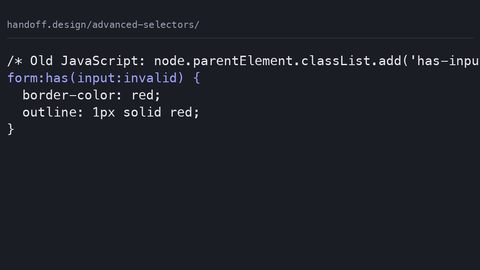
The crucial difference between :empty and the :has() relational pseudo-class is what each evaluates. :empty looks at the element’s own children and matches when there are none. :has() looks at the element’s descendants or subsequent siblings and matches when the given selector matches any of them. They are not interchangeable. :empty is a state check; :has() is a relationship check. For example, :has(> .spinner) matches a wrapper that has a direct child of class spinner, while :empty matches a box with no children at all. Use :empty for the loading state and :has() for a state where a specific child exists.
When you hide an empty box, consider its own styling. A wrapper with padding, borders, or a background will still render those styles even if display is not none. If you only want to remove the padding but keep the border, write .container:empty { padding: 0; border: none; }. This is a less aggressive approach that preserves the element’s space or removes it selectively.
Remove the Component Completely
Here is a sample that hides an empty wrapper while keeping the surrounding layout stable.
.widget {
  margin: 1rem 0;
  padding: 1rem;
}

.widget:empty {
  display: none;
  margin: 0;
  padding: 0;
}
The widget disappears completely, and the page reflows as if it never existed. This is the correct way to handle a component that may or may not have content. It prevents any layout shift that would otherwise occur when the content loads.
:empty vs :has() CSS: Choosing the Right Selector
The distinction between :empty and :has() is a frequent source of confusion. :empty matches a node with no children. :has() matches a node that contains a specific descendant or sibling. They answer different questions. Use :empty when you need to style the absence of content. Use :has() when you need to style the presence of a particular element. A card that should have a prominent border only when it contains an image uses .card:has(img). A card that should be hidden when it has no content uses .card:empty.
The practical difference shows in the DOM. A node with a comment inside it matches :empty but does not match :has() with a selector for that comment, because comments are not elements. A node with a whitespace text node does not match :empty but could match :has() if the text node is not an element and :has() only looks at elements. The two selectors operate on different node types. Read the specification rather than guessing.
Tab Panels and Cascade Behaviour
Consider a tab interface. Each tab panel is a div that contains content when active and nothing when inactive. To hide an inactive panel, :empty works only if the panel is truly empty. If the panel contains a hidden heading or a spacer, :empty fails. Instead, use a class like .tab-panel { display: none; } and .tab-panel.active { display: block; } to control visibility explicitly. The selector choice depends on your markup, not on the visual outcome.
Another difference is the cascade. Both :empty and :has() add one class-level specificity, so .item:empty and .item:has(.child) have the same specificity (0,2,0). The cascade then falls to source order. You can override an empty state with a has-state by placing the :has() rule later in your stylesheet. No specificity hacks needed.
The failure case for :has() is older browser support. While :empty has been Baseline widely available for years, :has() is newer and not supported in some older Safari versions locked to the device. Check caniuse for current support data before relying on the relational selector in production.
Frequently Asked Questions
Does :empty match an element with only a comment?
Yes. Comments do not count as child nodes, so an element containing only comments matches :empty. The element has no element nodes and no text nodes, so the selector applies.
Can I use :empty with the content property?
Yes. Combine :empty with ::before or ::after to generate placeholder text. The pseudo-element does not affect the empty state, so the selector continues to match.
What happens with a whitespace character like a space or a newline?
The element does not match :empty. A single whitespace character creates a text node, and :empty requires zero child nodes. Remove the whitespace from the markup or use a different technique.
Is :empty the same as :not(:has(*))?
No. :empty checks for any child nodes, including text nodes and comments. :not(:has(*)) checks for element children only. An element with a text node but no elements would match :not(:has(*)) but not :empty.
Does :empty work on void elements like ![]() or ?
or ?
Yes. Void elements cannot have children, so they always match :empty. This is harmless but unnecessary because void elements have no content to style.
The One Line That Makes This Page Unique
This subject suits any developer who writes HTML that is sometimes empty by design: asynchronous content, conditional renders, or placeholder components. It suits people who want to remove JavaScript from their styling logic and who trust the browser to evaluate the DOM state correctly. It does not suit developers who cannot control their template whitespace, because :empty fails on indented markup. It does not suit those who need to style elements that contain a text node of spaces; that is a different problem requiring JavaScript or a class toggle. If your templates always have whitespace, check textContent via script instead, and skip :empty until you can clean the markup.
More in this guide
CSS Advanced Selectors Guide for Modern Browser TargetingStyling List Markers Using the CSS ::marker Pseudo-ElementCombining CSS Selectors for Powerful Targeting Without Increasing Specificity Unnecessarily.
_Morten_Rand-Hendriksen_(35401919405).jpg)