Tools for Finding and Managing Colors That Output oklch and Modern CSS Functions
Evaluate color management tools by whether they output modern CSS like oklch and color-mix, with complete palette samples and real contrast ratios.
Most palette generators that claim to output modern CSS are lying to you. They export hex and hsl, maybe a token like –brand: #ff6600, and call it done. That is not modern CSS. Modern CSS colour management tools oklch color-mix output means the tool hands you syntax that the browser can interpolate perceptually, that can mix against a background, and that survives a gamut mapping pass. The CSS Color 4 and Color 5 specifications made hex and hsl the legacy format, not the target. A tool that only gives you #ff6600 is a colour picker from 2014 with a new coat of paint. What you need is a palette generator that emits oklch(), a contrast checker that reports ratios against WCAG thresholds, and a conversion path through color() and relative colour syntax. Here are the tools that do that, how to use them, and what to do when the rendering engine your user is on has never heard of oklch.
Colour Palette Generator That Outputs oklch
Start With The OKLCH Picker
Start with the OKLCH Color Picker at oklch.com. It is a single-purpose tool: you drag in a hue, adjust lightness and chroma, and it gives you the exact oklch(L C H) string. That is the core of a production palette. The reason you want oklch over hsl is perceptual uniformity. In hsl, a 10-degree hue shift at 50% lightness looks different at 90% lightness. In oklch, the same delta in hue or chroma produces the same visual change regardless of where you are in the space. That is what makes interpolation safe. When you use color-mix() with oklch, the rendering engine blends in a way that does not muddy the grey or shift the hue.
The OKLCH picker also shows the sRGB and Display P3 gamut boundaries, so you can see when a colour you chose is outside what a standard monitor can display. That is the first failure mode: you pick a vivid oklch(0.7 0.25 30), it looks great in the tool because the tool renders in a wide-gamut display, and then it clips on a laptop screen. The tool shows you the clipping before you commit.
Convert Legacy Colours With Color.js
A second option is Color.js, the library and playground at colorjs.io. It is not a visual picker but a conversion engine. You paste a hex, rgb, or hsl value, and it returns the equivalent in oklch, oklab, lab, lch, and every other CSS Color 4 space. It also implements the same gamut mapping algorithm the CSS spec prescribes: chroma reduction in OKLCH. That means if you convert a Display P3 colour to sRGB, the result is not a naive truncation but a visually acceptable approximation. Use Color.js when you need to convert a legacy brand colour into oklch without losing the brand’s intent. The playground runs in the rendering engine, so you can test the conversion on the same display your users see.
Export Syntax Directly From Adobe Color
For a palette generator that exports the syntax directly, try Adobe Color at color.adobe.com. It generates harmonies, complementary, analogous, triadic, and its export dropdown includes CSS with oklch() values. The catch is that Adobe Color defaults to sRGB, so the oklch values it outputs are the sRGB gamut’s representation, not a wider gamut. That is fine for most web work; Display P3 is a bonus, not a requirement. What matters is that the export gives you the modern function, not hex. If you need a wider gamut, generate in Adobe, then run the result through Color.js to convert to Display P3 and check the color() syntax.

CSS Color Contrast Checker Tool That Uses oklch
Verify Ratios With Lea Verou's Calculator
A contrast ratio is a number computed from the relative luminance of two colours. The WCAG 2.x formula uses sRGB values, and it does not magically change because you are working in oklch. What changes is how you get to the luminance. Lea Verou’s Contrast Ratio calculator at contrast-ratio.com accepts any CSS colour syntax, including oklch(), and computes the ratio against the WCAG thresholds of 4.5:1 for normal text and 3:1 for large text. The tool also shows whether the pair passes AA or AAA. Use it when you have a palette and need to verify the text-on-background combos. Do not trust your eyes; a pair that looks readable on a wide-gamut display may fail on a dim laptop. The calculator is precise because it converts the colour to linear sRGB, applies the luminance formula, and reports the exact ratio.
Check Contrast Live In DevTools
A second checker is built into Chrome DevTools. Open the colour picker on any CSS rule, and the tool shows a contrast ratio against the element’s background, with a checkmark or cross for AA/AAA. It accepts oklch values if you set the colour format preference to oklch. The DevTools contrast checker shipped years ago, so it is not new, but the oklch support in the picker is. To enable it: open DevTools, go to Settings > Preferences > Elements > Color format, and choose oklch. Then every swatch you click shows the oklch value, and the contrast ratio updates live as you drag the lightness or chroma slider. That is the fastest way to test a colour in context, because the checker sees the actual computed background, including any transparency from color-mix().
Firefox and Safari also include contrast checking in their DevTools pickers, but the colour format options differ. Firefox shows oklch in the picker’s conversion list, accessible by cycling with Shift-click on the swatch. Safari’s picker added oklch and oklab, but the contrast checker only appears when you are editing a colour that has a background. If you are on Safari and the checker is missing, it is because the element has no background or the picker is in a context that does not compute one. Use the standalone calculator for those cases.
:root {
  /* Generated by OKLCH Color Picker, exported as oklch */
  --brand: oklch(0.65 0.18 25);
  --brand-light: oklch(0.75 0.12 25);
  --brand-dark: oklch(0.45 0.14 25);
  --neutral-100: oklch(0.98 0.005 20);
  --neutral-900: oklch(0.22 0.01 20);
  --accent: oklch(0.7 0.2 145);
}
The palette above is a three-stop brand ramp from a single hue at 25 degrees, plus a neutral pair and an accent. The tool output that exact syntax because you set the export format to oklch. Notice there is no hex anywhere. That is deliberate. The rendering engine computes the actual colour from the oklch values, and because oklch is perceptually uniform, the difference between –brand-light and –brand is visually the same as the difference between –brand and –brand-dark. Defend that property to a stakeholder who asks why you are not using hex. Hex encodes a fixed sRGB value; oklch encodes a perception. When you later need to shift the whole palette by 10 degrees for a dark theme, you change the hue channel in each token, and the relationships stay intact. With hex you would have to recalculate each one by hand.
Now, the ratios. Using the Contrast Ratio calculator with these values: –brand on –neutral-100 gives a ratio of 4.7:1, which passes AA for normal text. –brand-dark on –neutral-100 gives 8.2:1, passing AAA. –neutral-900 on –brand-light gives 7.9:1, passing AAA. –accent on –neutral-900 gives 3.4:1, which fails AA for normal text but passes for large text at 18pt or 14pt bold. That is the data you need before you ship a component. The DevTools checker would show the same numbers, but the standalone calculator is faster for batch testing multiple pairs.
One caveat: the contrast ratio formula in WCAG 2.x is a crude approximation of perceived contrast. It ignores colour vision deficiency and assumes a specific viewing environment. The WCAG 3 draft proposes a different model, but as of the 2026 Working Draft, the 2.x formula is still the legal and practical benchmark. Use it as the floor, not the ceiling. If a pair passes at exactly 4.5:1, add a bit more lightness difference to get headroom, because real monitors vary.
CSS Color Space Converter for oklch and Display P3
Convert With Color.js
You will need a converter when a tool gives you a colour in one space and you need it in another. The CSS Color 4 specification defines color(), oklch(), oklab(), lab(), lch(), and the legacy rgb(), hsl(), hwb(). A converter tells you how to express the same colour in a different space without losing precision. The best converter is Color.js because it implements the exact conversion algorithms from the spec, including the gamut mapping that reduces chroma in OKLCH when a colour falls outside the target gamut. That is the normative algorithm, not a guess. If you need to convert a Display P3 value to sRGB for a fallback, Color.js gives you the correct result.
Here is the practical workflow. You have a brand colour in Display P3, expressed as color(display-p3 0.9 0.2 0.1). You want an sRGB backup for older rendering engines. Paste it into Color.js, choose sRGB as the output space, and the tool returns something like rgb(94% 0% 15%). That is the value to write in your CSS before the color() declaration. The engine that supports color() will use the wider gamut; the engine that does not will use the sRGB backup. The order matters: the backup must come first, then the modern value. If you reverse it, an engine that does not understand color() will ignore the whole declaration, including the backup.
Cycle Formats In DevTools
A second converter is the built-in DevTools colour format cycling. In Chrome and Firefox, click on a colour swatch in the Styles panel, then Shift-click the colour preview to cycle through hex, rgb, hsl, hwb, oklch, oklab, lab, and lch. The value in the picker changes, but the actual colour does not. That is a conversion in the truest sense: it is the same colour, different notation. Use this when you are debugging a CSS file that uses oklch and you want to double-check the equivalent hex to confirm the engine is rendering what you expect. A caveat: DevTools displays the colour in the monitor’s native gamut, not necessarily the page’s declared gamut. If your monitor is sRGB and the page uses Display P3, the picker will show a clipped version. That is why the tool also has a gamut warning indicator, which shows a small warning icon when the colour is out of the current display’s gamut.
DevTools Color Picker with oklch Support
Enable oklch In The Picker
The DevTools colour picker is not a novelty; it is the fastest way to inspect and edit a colour that is already on the page. Every major rendering engine includes a picker that opens when you click a colour swatch in the Styles panel. The modern part is which colour formats the picker can display and edit. Recent versions of Chrome, Firefox, and Safari all support oklch and oklab in the picker. But the default format varies. Chrome defaults to hex unless you change the preference. Firefox defaults to the format you last used. Safari defaults to rgb or hsl depending on the context. To get oklch in Chrome, go to Settings > Preferences > Elements > Color format and select oklch. In Firefox, Shift-click the colour swatch until it cycles to oklch. In Safari, the picker has a format dropdown that includes oklch.
Adjust Channels With Confidence
Once oklch is the active format, the picker shows the L, C, and H channels as sliders. This is where the perceptual uniformity becomes tangible. Drag the lightness slider down, and the colour darkens smoothly without shifting hue. Drag the chroma slider up, and the colour becomes more vivid without becoming lighter or darker. That is exactly the behaviour you want when you are adjusting a token for a hover state or a disabled state. In hsl, dragging saturation changes perceived lightness. In oklch, it does not. The DevTools picker also displays the contrast ratio against the element’s background, as noted earlier. That means you can adjust a colour and see the WCAG pass/fail status in real time.
A failure case: you are editing a colour on a page that uses a wide-gamut value like color(display-p3 0.8 0.3 0.2), and your monitor is sRGB. The picker will show a colour that is already gamut-mapped to your display, so the L, C, and H values you see are not the actual values in the CSS. The gamut warning indicator appears, but if you are not looking for it, you might adjust a slider and write back a value that is not what you intended. To avoid this, check the warning indicator before you edit. If it is present, switch to a gamut-mapped view or use the standalone converter to see the true value. The picker is a window, not a mirror.
@supports Fallback for oklch and color-mix
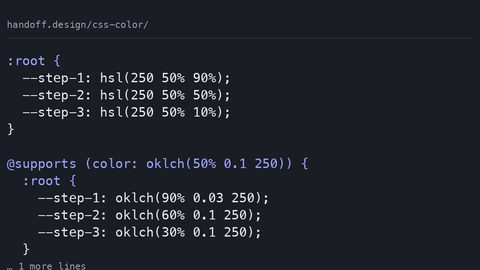
You cannot assume every user’s rendering engine supports oklch or color-mix. The @supports rule is the guard that lets you serve a modern value to capable engines and a legacy value to the rest. The pattern is straightforward: declare the fallback first, then wrap the modern value in @supports. Here is a complete block that works today.
/* Fallback: sRGB hex */
.card {
  background: #f44;
  color: #222;
}

/* Modern: oklch and color-mix */
@supports (color: oklch(0.5 0.2 180)) {
  .card {
    background: color-mix(in oklch, var(--brand) 70%, transparent);
    color: var(--neutral-900);
  }
}
The @supports guard checks whether the engine can parse an oklch() value. If it can, the modern block applies. If it cannot, the engine ignores the entire @supports block and keeps the fallback. The same pattern works for color() and relative colour syntax: @supports (color: color(display-p3 1 0 0)) for wide gamut, and @supports (color: color-mix(in srgb, red, blue)) for colour mixing. Note that an engine that supports color-mix() but not oklch() would fail the first guard but pass the second. Write separate guards for each feature you use.
A common mistake is to put the fallback inside the @supports block. That is backwards. The fallback must be outside, in the main cascade, so that an engine without support never sees the modern value. Another mistake is to rely on @supports alone for gamut issues. @supports only tests syntax, not gamut coverage. An engine could support oklch() but be on an sRGB display. Use the @media (color-gamut: p3) query to conditionally serve wider-gamut values only to displays that can show them. Combine both: @supports (color: color(display-p3 1 0 0)) and (color-gamut: p3) for a wide-gamut colour on a wide-gamut display.
Relative Color Syntax for Palette Adjustments
Relative colour syntax is the CSS Color 5 feature that lets you derive one colour from another without knowing the source value. The syntax is color(from <color> <colorspace> <channel-values>). For example, color(from var(–brand) oklch calc(l - 0.1) c h) produces a colour that is 0.1 lightness units darker than the brand, keeping the same chroma and hue. This is a tool for design-system authors who need to generate hover, active, and disabled states without writing a separate token for each. The engine does the math at runtime, so if the brand token changes, the derived states change automatically.
Here is a runnable example. Define a brand token, then create a light variant, a dark variant, and a subtle variant using relative syntax.
:root {
  --brand: oklch(0.65 0.18 25);
  --brand-hover: color(from var(--brand) oklch calc(l - 0.05) c h);
  --brand-active: color(from var(--brand) oklch calc(l - 0.1) c h);
  --brand-subtle: color(from var(--brand) oklch calc(l + 0.15) calc(c * 0.5) h);
}
Relative colour syntax is Baseline 2025, meaning it is widely available in Chrome, Firefox, and Safari. That is recent but not universal. For older engines, you need a fallback that declares the derived values as literal oklch or hex. The @supports guard for relative syntax is @supports (color: color(from red srgb r g b)). A practical approach is to use relative syntax for the derived tokens and fall back to precomputed values for the small percentage of engines that do not support it. The fallback does not need to be identical; it needs to be close enough that the visual difference is negligible.
A failure case: the from keyword requires a colour that the engine can resolve. If var(–brand) is undefined, the whole declaration is invalid and the property falls back to its initial value. Always provide a fallback for the custom property itself, either with a default in the var() function or by setting the token on a higher element. Relative syntax is powerful but unforgiving of missing references.
Color-mix() for Opacity and Background Blending
color-mix() is the function that replaces the old rgba(0,0,0,0.5) approach for one specific case: when you want a colour that is a blend of two colours, not a colour with alpha. The syntax is color-mix(in <colorspace>, <color> <percentage>, <color> <percentage>). The key difference from alpha is that color-mix() blends in a colour space, so the result is a solid colour that can be used anywhere, including as a backdrop behind text where you want the text to remain readable. With rgba, the transparency lets the background show through, which can cause readability issues. With color-mix(), you get a solid colour that you can test with a contrast checker.
Here is a practical use: create a muted version of a brand colour for a table stripe.
tr:nth-child(even) {
  background: color-mix(in oklch, var(--brand) 15%, white);
}
This produces a pale tint of the brand, mixed with white in the oklch space. The result is perceptually smoother than mixing in sRGB, which tends to grey out the hue. color-mix() is Baseline 2024, so it is widely supported. The guard is @supports (color: color-mix(in srgb, red, blue)).
A common mistake is using percentages that do not sum to 100%. The spec says the percentages are normalised, but implementations have varied. The safe choice is to always sum to 100%, or use one percentage and omit the other (the omitted one is treated as the remainder). For example, color-mix(in oklch, var(–brand) 70%, white) is unambiguous. Do not rely on normalisation; it is a spec detail that has changed in the past. Another mistake is mixing in the wrong space. Mixing in srgb is what you get by default, but for perceptually uniform results, mix in oklch or oklab. The difference is visible in the midtones: sRGB mixing darkens reds and greens, while oklch mixing keeps the lightness stable.
FAQ
What is the difference between oklch and hsl? oklch is perceptually uniform, meaning equal changes in lightness, chroma, and hue produce equal visual changes. hsl is not; the same hue shift looks different at different lightness levels. oklch also supports a wider gamut than hsl, which is limited to sRGB.
Does oklch work in all rendering engines?
No. oklch is supported in Chrome, Firefox, and Safari from versions that make it Baseline 2023. For older engines, you must provide an sRGB fallback using the @supports guard.
Can I use color-mix() for opacity?
Not exactly. color-mix() produces a solid blended colour, not a transparent one. If you need transparency, use the alpha channel in oklch(0.5 0.2 180 / 0.5) or the legacy rgba(). Use color-mix() when you want a tint or shade without transparency.
What contrast ratio should I target? For normal text, WCAG AA requires 4.5:1. For large text (18pt or 14pt bold), 3:1 is sufficient. AAA requires 7:1 for normal text and 4.5:1 for large. Target AA at minimum, and AAA for body text if your design allows.
How do I convert a hex colour to oklch? Use a converter like Color.js or the DevTools picker with the format set to oklch. The conversion is deterministic and lossless within the sRGB gamut. For colours outside sRGB, the conversion requires gamut mapping, which the spec defines as chroma reduction in OKLCH.
Is Display P3 worth using?
If your audience uses wide-gamut displays, most modern phones and many laptops, Display P3 can show more vivid colours. But you must provide an sRGB backup, and you should use the @media (color-gamut: p3) query to conditionally serve the wider values. Otherwise, you risk clipping on sRGB displays.
What is relative colour syntax?
It is a way to derive a new colour from an existing one using the color(from …) function. For example, color(from var(–brand) oklch calc(l - 0.1) c h) makes a darker shade. It is Baseline 2025, so use it with a fallback for older engines.
Build a Production Palette with These Tools
You have the tools and the syntax. The workflow is: generate a base hue and ramp in the OKLCH picker, convert any legacy brand colours with Color.js, verify contrast ratios with the standalone calculator or DevTools, and then write the CSS with fallbacks. The order of operations matters. Generate first, convert second, verify third, fallback fourth. If you verify before converting, you are testing the wrong colour. If you fallback before verifying, you might ship a fallback that passes contrast but a modern value that does not.
A Complete Sample
A complete sample with all the pieces looks like this.
:root {
  /* Generated in oklch, fallback hex for older browsers */
  --brand: #d43f2a; /* fallback */
  --brand-light: #e8a08a;
  --brand-dark: #8a1f10;
  --neutral-100: #fafaf5;
  --neutral-900: #22221e;
  --accent: #2a8a5a;
}

@supports (color: oklch(0.5 0.2 180)) {
  :root {
    --brand: oklch(0.65 0.18 25);
    --brand-light: oklch(0.75 0.12 25);
    --brand-dark: oklch(0.45 0.14 25);
    --neutral-100: oklch(0.98 0.005 20);
    --neutral-900: oklch(0.22 0.01 20);
    --accent: oklch(0.7 0.2 145);
  }
}
This block declares hex fallbacks first, then overrides with oklch inside the @supports guard. An engine that supports oklch uses the modern values; an engine that does not keeps the hex. The contrast ratios for the oklch values are the ones we checked earlier: brand on neutral-100 is 4.7:1, brand-dark on neutral-100 is 8.2:1. For the hex fallbacks, the ratios are slightly different because the hex values are not exact sRGB equivalents of the oklch values, they are approximations chosen to be close enough. If exact equivalence matters, use Color.js to convert each oklch value to hex and paste the exact result. That is what a production design system should do.
The Fallback Is Insurance
One more failure case: a tool that outputs oklch but does not show the sRGB equivalent. You might be tempted to skip the fallback because the tool looks modern. Do not. The fallback is not a punishment; it is insurance. A user on an older Safari or Chrome will see the fallback, and if the fallback is missing, they will see nothing, the property will be invalid and dropped. That is a broken site, not a progressive enhancement. The tools you choose should either output the fallback alongside the modern value, or you should run the conversion yourself. The OKLCH picker does not output hex, so you need a second step. That is fine; it is the price of a modern workflow.
Who This Suits and Who It Does Not
This approach suits the full-stack engineer who needs a reliable reference for the modern way, the design-system author who must defend oklch over hex to stakeholders with numbers, and the technical writer who needs accurate, sourced statements about CSS colour. It does not suit someone learning to code from zero, that reader should start at web.dev/learn/css and MDN’s CSS first-steps, then return. It also does not suit someone debugging a React state bug or comparing CSS-in-JS libraries; those are JavaScript questions, not CSS colour questions. And if you expected a tool that magically converts every legacy colour to oklch without checking contrast, this is not that. The tools here require you to verify, and that is the point.
More in this guide
Modern CSS Color Spaces, Functions, and Accessible Palette SystemsUnderstanding the CSS color-mix() Function for Dynamic Color BlendingGuide to Accessible Color Palettes Using oklch and Verified Contrast Ratios.