Finding and Removing Unused CSS From Your Production Stylesheets
Measure and remove unused CSS with the Coverage panel and PurgeCSS to reduce render-blocking bytes and improve LCP, without breaking conditionally-applied styles.
You open Chrome DevTools, hit Ctrl+Shift+P, type “Coverage”, and the panel shows a wall of red across dozens of style sheets. That red is bytes the browser downloaded, parsed, and held back first paint for, then never used. Your Largest Contentful Paint is 3.1 seconds and you have been blaming the hero image. The image is not innocent, but it is not the bottleneck. This guide measures that waste, shows you how to remove unused CSS from your production stylesheets, and gives you runnable code to do it without breaking the styles you actually need.
The Real Cost of Unused CSS
Render-blocking CSS is any byte the browser must download and parse before it can paint. Every one of those bytes delays the Largest Contentful Paint, because the critical path is a queue. Unused CSS is pure tax. It adds transfer size. It grows style recalculation time. It inflates gzip and brotli compression ratios with repeated but dead declarations.
Lighthouse flags any page with more than 20 KB of unused CSS (uncompressed) in its “Reduce unused CSS” audit. That threshold is not a suggestion; it is the point where the waste becomes measurable in a performance budget.
What The Coverage Panel Actually Sees
The Coverage panel in Chrome DevTools shows you exactly which selectors never match in a given load. But note: the Coverage panel measures what was used during that one session. It does not know about the hover state, the dropdown that requires three clicks, or the login error style that appears only after bad credentials.
Unused CSS Performance Impact: What the Metrics Actually Say
Before you delete anything, measure the damage. Run a Lighthouse audit with the “Reduce unused CSS” audit enabled. It reports the potential bytes saved and the estimated LCP improvement. That improvement is not cosmetic; it is the difference between a 2.5-second LCP and a 1.8-second one on a 4G connection with a 1.6 Mbps round trip.
The wasted bytes are not just download time. The browser must parse them, then match every selector in the cascade against the DOM. A style sheet with thousands of rules but only a fraction that ever apply still forces the style recalculation engine to walk all of them during style resolution.
Size Is Not The Only Cost
The Coverage panel gives you the raw percentage, but it does not tell you which of those red bytes are the expensive ones. A three-line utility class that is dead costs the same as a large component style that is dead, per byte, but the component style has a structural cost beyond its size.
CSS Coverage Audit: Reading the Coverage Panel Correctly
Open DevTools, go to More tools, then Coverage. Click the reload icon to record a fresh load. The panel colors used CSS green and unused red.
Do not trust a single pass. The Coverage panel only sees what the current page state executes. If your page renders differently on hover, focus, or after user interaction, that interaction-driven CSS shows as unused even though it is load-bearing.
Recording A Real Session
To audit properly, record a session that navigates through your primary user flows: search, filter, add to cart, checkout, error state, offline state. Export the coverage report as JSON. That file lists every style sheet and the byte ranges that were used and unused. Write a small script that extracts the unused ranges per file, or use a tool like source-map-explorer to trace which source modules contributed the dead bytes. This is the audit that makes the purge safe.
Purify CSS Build Step: A Complete PurgeCSS Configuration
PurgeCSS is the workhorse for removing unused CSS at build time. It scans your HTML, JavaScript, and template files for selectors and removes rules that do not match. A minimal configuration for a Vite or webpack build looks like this:
// purgecss.config.cjs
module.exports = {
  content: ['./src/**/*.html', './src/**/*.js', './src/**/*.jsx'],
  css: ['./dist/assets/*.css'],
  safelist: {
    standard: [/^(js|is|has)/], // Keep dynamic class hooks
    deep: [/^theme-/], // Keep theme variants for runtime theming
  },
  defaultExtractor: (content) => content.match(/[A-Za-z0-9\-_:/]+/g) || [],
  keyframes: true, // Keep keyframes even if unused
  variables: true, // Keep custom properties if any are used
};
Run it with npx purgecss –config purgecss.config.cjs. The output overwrites your CSS files in place, so back them up first.
The Safelist Is Not Optional
Many frameworks add classes at runtime via JavaScript, and PurgeCSS cannot see those strings. The defaultExtractor regex is tuned for utility-class syntax; if you use CSS Modules, adjust it. Test the output in a staging environment that runs your full interaction suite.
Critical CSS Extraction: Inlining What Sells the Page
Critical CSS extraction inlines the styles for above-the-fold content in a <style> tag and loads the rest asynchronously. Use a preload pattern that falls back gracefully:
<style>
  /* Critical CSS: above-the-fold rules only */
  .hero { display: grid; }
</style>
<link rel="preload" as="style" href="/css/full.css" onload="this.onload=null;this.rel='stylesheet'">
<noscript><link rel="stylesheet" href="/css/full.css"></noscript>
The preload attribute tells the browser to fetch the full style sheet at high priority without blocking render. The onload swaps it to a normal style sheet after the page paints. The <noscript> version covers users with JavaScript disabled.
Stay Under The Congestion Window
The critical CSS itself must stay under 14 KB uncompressed to fit in the initial congestion window of a typical TCP connection. Larger than that, and you delay first render instead of helping it. Tools like Lighthouse’s “Inline Critical CSS” audit can generate this for you, but they rarely match your exact template. Regenerate the critical CSS every time your templates change, or you get stale inlined styles that override the updated external sheet. Most teams automate this in the build: extract critical CSS per route, inline it, and cache-bust the full sheet.
Media Query Deferral and the @media (scripting: none) Pattern
Not all unused CSS is entire rules. A common pattern is a rule that only applies on small screens or in print, but is shipped in the main bundle. Defer media-specific styles by splitting them into separate files and loading them conditionally:
<link rel="stylesheet" href="base.css">
<link rel="stylesheet" href="print.css" media="print">
<link rel="stylesheet" href="small.css" media="(max-width: 48em)" onload="this.media='all'">
<noscript><link rel="stylesheet" href="small.css"></noscript>
The media attribute on the link tag tells the browser to download the file but defer its blocking effect until the media query matches. The onload trick swaps it to all after the page loads, which is a common pattern for off-screen styles.
When Deferral Works
This only works for styles that are not needed for the initial paint. A mobile-first site that loads desktop styles only above a breakpoint can safely defer the desktop file. The same logic applies to @media (scripting: none), which lets you serve a minimal CSS subset when JavaScript is off. Interactive components like carousels or tabs that require script to function can have their base styles excluded entirely when script is disabled.
PurgeCSS Safelist Mistakes and the Conditional Style Problem
The number one reason automated CSS removal breaks a site is safelisting too much. Developers often safelist an entire third-party library, which defeats the purpose. Instead, safelist only the classes that your JavaScript actually toggles. If you use a date-picker that adds .is-open to a dropdown, safelist .is-open. Do not safelist .form-control just because Bootstrap has it.
The second mistake is ignoring interaction-driven styles. A tooltip that appears on focus. A modal that opens after a delay. A table that sorts on click. These all use classes that are absent on initial load. The Coverage panel will show them as unused, and PurgeCSS will strip them.
Audit Every Dynamic Class
The fix is to audit every dynamic class with a grep over your JavaScript and template files. Search for className, class:, and template literals that build class strings. If you find a dynamic class, add it to the safelist. The alternative is a more conservative approach: keep all classes that appear in any JavaScript string, even if they are not in the HTML. Safer, but less effective.
Lightning CSS: A Faster Purge and a Safer Transformation
If PurgeCSS feels slow on large projects, Lightning CSS offers a Rust-based alternative. It parses, transforms, and minifies CSS in one pass, and its –unused flag removes dead rules during the same step. A basic command-line usage looks like this:
lightningcss --minify --bundle --targets ">=0.25%" input.css -o output.css --unused
The –unused flag uses a built-in selector parser to identify rules that do not match the HTML you pass via –unused-html. It is not a drop-in replacement for PurgeCSS because it does not scan JavaScript for class names; you must pass the HTML content explicitly or use the Node API with your own glob.
Modern Syntax Without The Bloat
What Lightning CSS does better is handle modern syntax: it can transpile CSS custom properties, @layer, and :has() to older equivalents without losing fidelity. This is useful if your build target includes older engines that do not support those features. Do not use it to transpile away modern CSS that your supported targets already understand; that adds bytes without benefit. For most teams, PurgeCSS handles the removal and Lightning CSS handles the transformation, and they work together.
content-visibility: auto and Containing the Cost of Off-Screen Styles
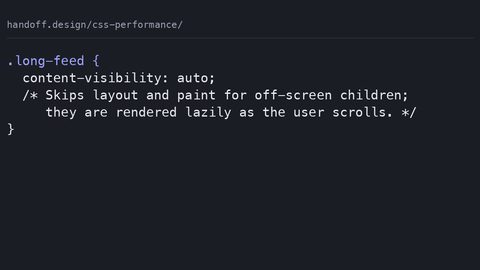
content-visibility: auto is a CSS property that tells the browser to skip rendering work for off-screen elements. It is widely available (check caniuse for current support), and its syntax is short: content-visibility: auto; on a section wrapper. The browser skips layout, paint, and style recalculation for that subtree until it scrolls near the viewport.
This is not a replacement for removing unused CSS; it is a complement. If you have a long page with a footer that uses a dozen rarely-encountered classes, content-visibility: auto prevents the browser from spending time on them until the user scrolls.
Avoid The Scroll-Jank Trap
It has a trap: if the element has no intrinsic size, the browser cannot calculate the scrollbar, and you get scroll-jank. You must set explicit dimensions or use contain: size as a fallback, which collapses the element to zero if you forget. The standard pattern is:
.cv-auto {
  content-visibility: auto;
  contain-intrinsic-size: 0 500px; /* Reserve space to avoid layout shift */
}
The contain-intrinsic-size provides a hint for the browser to reserve space while the content is skipped. Without it, the element collapses and the page height jumps. Use this on long article bodies or comment sections, not on above-the-fold content where the browser needs the size immediately.
Using @layer to Defer Low-Priority CSS
Cascade layers give you a mechanism to mark certain styles as lower priority. You can put third-party or utility-class styles in a layer, then load that layer asynchronously or conditionally without blocking the critical path. For example:
@layer reset, base, utilities, components;

@layer utilities {
  .p-4 { padding: 1rem; }
}

@layer base {
  body { font-family: system-ui; }
}
The order of the @layer declaration sets the cascade priority; later layers win. Unlayered styles always win over layered styles regardless of specificity, which is a common gotcha. If you have a component that needs to override a utility, put the component styles outside any layer or after the utilities layer.
Layers Reorder, They Do Not Eliminate
The practical use for unused CSS reduction is to put your rarely-needed or potentially-dead styles in a layer that you only load after first paint. You can load a layer via @import at the top of your main style sheet, and then use a media query to defer it. Layers do not eliminate unused CSS; they reorder what wins. If a rule in a deferred layer would have applied, it still applies once loaded. The gain is that the browser parses the layer’s rules later, so the initial style recalculation is smaller.
Frequently Asked Questions
Does removing unused CSS always improve LCP? If the removed bytes were render-blocking, yes. But if the unused CSS is in a deferred or async-loaded file, removing it saves bandwidth, not LCP. Measure with Lighthouse before and after.
Can I safely run PurgeCSS on a production site with user-generated content? No, not without a safelist. User-generated HTML often includes inline styles or dynamic classes. Extract those classes to a safelist or move them to a separate style sheet.
What is the difference between critical CSS and async CSS? Critical CSS is inlined in the HTML to paint above-the-fold content. Async CSS is loaded via preload and applied after first paint. Critical CSS blocks render; async CSS does not.
How do I know if my critical CSS is too large?
Run Lighthouse; it will flag inline styles over 14 KB. Use a tool like critical to extract only above-the-fold rules. If it is still large, your page has too many above-the-fold components.
More in this guide
CSS Performance and Core Web Vitals What Declarations Cost in Layout Paint CompositeCSS Tools, Generators, Playgrounds and Converters Judged on Output QualityOptimizing CSS Custom Properties: Inheritance Cost, Computed Value Stability, and Theming Trade-offs.