Building On-Scroll Animations Using IntersectionObserver and the Scroll-Driven Animations API
Build on-scroll animations with IntersectionObserver or the declarative scroll() and view() timeline functions. Learn which approach runs off the main thread with runnable samples.
Scroll-driven CSS animations are the rare feature where the declarative version is also the faster one. You have two paths to make a component react to scroll. The JavaScript IntersectionObserver API fires a callback on the main thread and toggles a class that triggers a CSS animation. The Scroll-Driven Animations API ties movement directly to a scroll progression or view progression with pure CSS, running entirely off the main thread. The gap is not cosmetic. One path competes with your layout work. The other never touches the main thread at all. Below, you get working samples and the real support picture so you know which one to ship today.
The IntersectionObserver Approach: Main-Thread Callback, Compositor-Safe Animation
Set Up The Observer
IntersectionObserver is a JavaScript API that watches a target node and reports when it crosses a boundary relative to a root, usually the browser window. Create an observer with the new IntersectionObserver(callback, options) constructor. The callback receives an array of IntersectionObserverEntry objects, each carrying isIntersecting, intersectionRatio, boundingClientRect, rootBounds, and target. The options object accepts root (the container used as the viewport, defaulting to the browser window), rootMargin (a string with syntax identical to CSS margin, expanding or shrinking the root bounds), and threshold (a number or array of numbers between 0 and 1 indicating at what percentage of target visibility the callback fires).
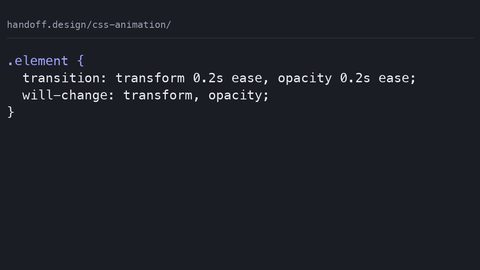
The callback itself runs on the main thread. It does not fire on every scroll pixel. The browser batches observer callbacks to idle periods, which is why IntersectionObserver is dramatically cheaper than a raw scroll event listener that calls getBoundingClientRect() on every frame. The main-thread cost is real but bounded. The animation you trigger, however, can be compositor-safe if it only touches transform and opacity. Those two properties skip layout and paint entirely and run on the compositor thread, giving you 60fps even on low-end hardware.
Build A Reveal Animation
Here is a complete reveal. The piece starts hidden. When it enters the visible area, the observer adds a class that runs a transform-and-opacity transition. The whole thing wraps in prefers-reduced-motion to disable the motion for users who ask for that.
/* style.css */
.reveal {
  opacity: 0;
  transform: translateY(20px);
  transition: opacity 0.6s ease, transform 0.6s ease;
}

.reveal.is-visible {
  opacity: 1;
  transform: translateY(0);
}

@media (prefers-reduced-motion: reduce) {
  .reveal {
    opacity: 1;
    transform: none;
    transition: none;
  }
}
// script.js
const targets = document.querySelectorAll('.reveal');

const observer = new IntersectionObserver((entries, observer) => {
  entries.forEach((entry) => {
    if (entry.isIntersecting) {
      entry.target.classList.add('is-visible');
      observer.unobserve(entry.target); // fire once, then stop watching
    }
  });
}, {
  threshold: 0.1, // fire when 10% of the element is visible
  rootMargin: '0px 0px -10% 0px' // shrink the bottom of the viewport by 10%
});

targets.forEach((target) => observer.observe(target));
<!-- index.html -->
<div class="reveal">
  <p>This paragraph fades in and slides up when you scroll to it.</p>
</div>
Avoid The Common Mistakes
The failure case for IntersectionObserver: forgetting to set a threshold array. The default is 0, which fires once when any part of the target first becomes visible, then again when it leaves. If you want multiple visibility percentages, pass an array like threshold: [0, 0.25, 0.5, 0.75, 1]. Another mistake is not accounting for rootMargin when you want the animation to fire before the piece fully enters the visible area. Feature detection is straightforward: typeof IntersectionObserver !== ‘undefined’. If it is missing, the fallback is a JavaScript scroll event listener with getBoundingClientRect(), which is what everyone used before 2016 and which will jank on long pages because it runs layout on every scroll frame.
What IntersectionObserver Costs You
The price of the IntersectionObserver approach is writing JavaScript to do something CSS could do. You maintain an observer lifecycle, handle the callback, and manage class toggling. The animation itself is still CSS, which is good, but the trigger is procedural. Thirty items on a page means thirty observer registrations or a single observer with branching logic. And because the callback runs on the main thread, a heavy callback that does layout reads or writes can still drop frames. The rule: keep the callback thin, only toggle a class, and let the CSS animation do the visual work on the compositor.
Scroll-Driven Animations CSS: Off-Main-Thread and Declarative
The Scroll-Driven Animations API is a separate specification from IntersectionObserver. It uses no JavaScript at all. You declare a progression with the animation-timeline property and one of two functions: scroll() or view(). The scroll() function creates a scroll progression that advances with the scroll position of a scrolling container, usually the browser window. The view() function creates a view progression that advances as a specific piece moves through the visible area, from first pixel entering to last pixel exiting. Both run entirely off the main thread on the compositor. They never compete with your JavaScript for main-thread time.
The syntax is declarative. Set animation-timeline: scroll() on a piece, and the animation progresses from 0 to 1 as the scroll container moves from top to bottom. Set animation-timeline: view() on a piece, and the animation ties to that piece’s visibility in the visible area. Control the range with animation-range, which lets you decide when the animation starts and ends within the progression. For example, animation-range: entry 0% entry 100% plays the animation only while the piece is entering the visible area.
The practical consequence: a scroll-driven animation cannot jank the main thread because it never runs there. The compositor handles the progress calculation and the animation update in the same pass that handles scrolling and transforms. This is the same thread that gives you smooth 60fps scrolling on a typical page, so the animation inherits that smoothness.
Build A Scroll Progress Bar
Here is a scroll progression bar. It fills horizontally as you scroll down the page. The scroll() function defaults to the nearest scroll container, which is the browser window. The animation uses a scale transform on the X axis, which is compositor-safe.
/* progress.css */
@keyframes fill {
  from { transform: scaleX(0); }
  to { transform: scaleX(1); }
}

.progress-bar {
  position: fixed;
  top: 0;
  left: 0;
  width: 100%;
  height: 4px;
  background: #4a90e2;
  transform-origin: left;
  animation: fill linear both;
  animation-timeline: scroll();
}

@media (prefers-reduced-motion: reduce) {
  .progress-bar {
    animation: none;
    transform: none;
  }
}
<!-- index.html -->
<body>
  <div class="progress-bar"></div>
  <main>
    <!-- long content so the page scrolls -->
  </main>
</body>
View Timeline: Animate Entry And Exit
The view() function ties the animation to a specific piece rather than the whole page. The animation plays as the piece travels through the visible area. By default, the progression starts when the piece’s first pixel enters and ends when its last pixel exits. Adjust this with animation-range.
Here is a view progression that fades and slides an image in as it enters, holds it while fully visible, and fades it out as it exits. The animation-range property controls the exact window.
/* view.css */
@keyframes travel {
  0% {
    opacity: 0;
    transform: translateX(-20px);
  }
  50% {
    opacity: 1;
    transform: translateX(0);
  }
  100% {
    opacity: 0;
    transform: translateX(20px);
  }
}

.view-target {
  animation: travel linear both;
  animation-timeline: view();
  animation-range: entry 0% exit 100%;
}

@media (prefers-reduced-motion: reduce) {
  .view-target {
    animation: none;
    opacity: 1;
    transform: none;
  }
}
<!-- index.html -->
<div class="view-target">
  <img src="photo.jpg" alt="A landscape">
</div>
The animation-range values are what make view progressions flexible. Use animation-range: entry 20% exit 80% to start the animation after the piece is 20% into the visible area and end it when it is 80% out. The keywords entry, exit, cover, and contain work with percentages. This is how you create animations that feel intentional rather than reactive to scroll.
The Claimed vs. the Real Gap: Support and the Main-Thread Tradeoff
Here is the honest comparison. IntersectionObserver is older and has near-universal support. It shipped in all major browsers by 2019, and the only users missing it are on device-locked browsers that stopped updating, a small but real slice of the audience. The support figure approaches 100% for evergreen browsers, but the real gap is the 0.5% to 3% of users on older iOS Safari or Android WebView versions that cannot update. For those, you need the fallback: a scroll event listener with getBoundingClientRect().
Scroll-driven animations are newer. The scroll() and view() timeline functions have a narrower Baseline status. They are available in Chromium-based browsers (Chrome, Edge) since a recent version, and in Firefox and Safari they are behind flags or not shipped at all as of the research date. That means you cannot use them as the only implementation for a production site without a fallback. The fallback is the IntersectionObserver approach or a JavaScript scroll listener.
The “performant” label on scroll-driven animations is real, with a caveat. The animation runs off the main thread only if it animates compositor-safe properties: transform and opacity. Animate height, width, top, left, or anything that triggers layout or paint, and the browser must move the work to the main thread. The compositor advantage vanishes. The real gap between the claim and the reality is the difference between 60fps and 10fps on a low-end device when you animate the wrong property.
Put the two approaches side by side on the axes that matter.
| Axis | IntersectionObserver + CSS animation | Scroll-Driven Animations (scroll() / view()) |
|---|---|---|
| Thread for trigger logic | Main thread (callback) | Main thread (none; declarative) |
| Thread for animation | Compositor (if transform/opacity) | Compositor (if transform/opacity) |
| Requires JavaScript | Yes (observer setup) | No |
| Browser support | Universal since 2019 | Chromium recent; Firefox/Safari limited |
| Fallback complexity | Simple (scroll listener) | IntersectionObserver or JS, plus @supports |
| Use case | Reveal on first enter, fire once | Progress bars, continuous scroll-linked effects |
How to Choose: When Each Approach Is the Right Answer
Decide based on your browser support budget and the behaviour you need. If you must support old iOS Safari or Android WebView, use IntersectionObserver. It is a JavaScript API, but the animation itself is CSS, and the observer callback is cheap. If you are building for evergreen Chromium browsers only, or you can accept a graceful fallback, use scroll-driven animations for anything that tracks scroll position continuously: a progress bar, a parallax effect. For a one-time reveal, IntersectionObserver is simpler because you can unobserve after the first intersection, which the scroll-driven API cannot do without extra logic.
Progressive Enhancement That Works
A practical pattern: use @supports (animation-timeline: scroll()) to test for scroll-driven animations, and fall back to IntersectionObserver or a scroll listener if the test fails. This gives you the compositor performance where it is available and a working fallback elsewhere. The @supports test is reliable for property-value pairs, even if it cannot test every feature of the spec.
The Failure Case: Nothing Works
The worst case is a user on a browser with no IntersectionObserver and no scroll-driven animations. Rare but possible on device-locked browsers. The fallback is a scroll event listener that reads getBoundingClientRect() on every scroll and toggles a class. This will jank on long pages. It is better than no animation. For the animation itself, keep it to transform and opacity so the compositor can still handle the visual update even if the trigger is main-thread. If you are in a hurry and cannot test every browser, ship the IntersectionObserver version with the scroll-listener fallback, and add a progressive enhancement for scroll-driven animations behind @supports.
FAQ: Four Answers You Will Need
Does IntersectionObserver run on the main thread?
Yes. The callback that checks isIntersecting runs on the main thread, but the browser batches it to idle periods rather than every scroll frame. The CSS animation it triggers can run on the compositor if it animates only transform and opacity.
Can I use scroll-driven animations without a fallback?
Only if your audience is exclusively on a recent Chromium version. Firefox and Safari do not ship animation-timeline: scroll() or view() without flags as of the research date. Check caniuse for the current picture. Use @supports to detect and fall back to IntersectionObserver.
What is the difference between scroll() and view()?
scroll() ties the animation to a scroll container’s position, like a progress bar for the whole page. view() ties it to a specific piece’s visibility in the visible area, playing as that piece enters and exits. Choose view() for piece-specific effects.
Does prefers-reduced-motion work with both approaches?
Yes. Wrap the animation definitions in a @media (prefers-reduced-motion: reduce) block and disable them. For IntersectionObserver, also check the media query in JavaScript and skip the observer if the user prefers reduced motion.
More in this guide
CSS Animation Hub: Transitions, Keyframes, and Compositor-Safe PropertiesCreating Staggered Animations Using animation-delay and CSS Custom PropertiesHow to Write Performant CSS Animations That Stay on the Compositor Thread.